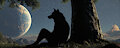
1. Open the provided workflow in ComfyUI (either portable or desktop, doesn't matter, but I use portable), download the necessary models (there are links on the left, inside the workflow. I recommend chroma v48 detail calibrated, but most Chroma versions post v42 are very similar). With the workflow, I write a prompt and then generate until I get a starting image that I like. With Chroma, writing with descriptive, natural language works best.
2. I take the image I like and open it in Photoshop, then also I copy and paste it into the "Load Image" node in the workflow.
3. Connect the latent output of the VAE Encode node to the latent input of the KSampler node, change KSampler denoise to somewhere around 0.7-0.9 (lower is less changes, higher is more)
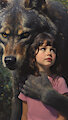
4. I generate several variations based off of the initial image. Different images will have different aspects that I like, for example I might like the wolf in one image, or the girl in another, or even something small like a character's eyes.
5. I take the variants I like and bring them into Photoshop, then I use a mask to paint in the parts of the new images I like. So I may mask in a new wolf, or mask in part of a pose that I like from another image (for example, the hand going over the girl's chest).
6. In some situations, I may manually draw in or Photoshop aspects of the image I want to change. So I may want to change the angle of the wolf's arm, for example, so I'd use the quick select brush on the arm, copy and paste the arm, and use both transform and puppet warp to adjust the pose, then clone brush fix up the issues underneath.
7. Ctrl + A select everything in Photoshop, then Ctrl + Shift + C to copy all visible layers.
8. I paste the modified image back into the Load Image node.
9. Rinse and repeat 4-8, generating different variations, masking in parts of the ones I like in Photoshop, and pasting the modified result back to the Load Image node.
10. In some cases, I will use a LoRA like Chroma 1980s (from here: https://huggingface.co/Vinzou/Chroma-LoRA-Experiments/t...) as part of the final few passes, increasing denoise to get a stronger effect. In this case, I find the 1980s LoRA gives the painterly style a "dark" look, which I like a lot. There is a bypassed Load LoRA node at the very top of the workflow. Click it and press Ctrl + B to unbypass it if you want to use it.
11. The closer I get to a final image, the more I lower the Ksampler denoise, as at this point it is mostly touching up.
12. Some more img2img passes, with lower denoise strength.
Some notes:
If you're loading an image in Photoshop, you can do anything that you would normally do in Photoshop. So, you can manually paint, or clone brush to fix problems, or reposition parts of a character, or change the color of clothes, or paint in new clothes. Sometimes, I like to quick select a character and make a new layer from the mask, then use a soft white brush to paint in lighting on the edges of a character.
This is an exact description of the way that I work, but during the actual creation process, the method is not exact. I could start from the same base image and potentially end up with a very different looking final image, depending on the intermediate images and the parts of them I decided to use. For example, you can see that the intial images in this project were very different, but then I settled on "ComfyUI_02886_.png" for the start, because I liked the overall look/shading/composition. As the project went on, I changed the wolf, and then I took the "hand over the chest" idea from the earlier images. You can also see for a while I had painted a hat onto the girl, but ultimately I Photoshopped it back out as I got closer to the end.
In general I do have an overall look that I am trying to push toward and an idea/composition in mind, and I will try to steer it that way; however, sometimes I don't mind letting Chroma "take the wheel". At times it is very much throwing ideas at Chroma and then seeing where it takes you.
I kind of got discouraged from posting on here when my submissions were locked and I got thoroughly interrogated to provide every single step of the process. There was a lot of back and forth with the mods who seemed to be punishing me for putting more work into my gens than others, and requiring that I provide detailed instructions and zips containing every single image that was an intermediate step in the process.
I have some more recent gens too, but as they involved multiple models and intermediate steps, some of which I don't have anymore, I haven't posted them here out of fear of having them hidden/removed.
Hey thank you! And sorry I didn't respond sooner. I kind of got discouraged from posting on here w
I can understand and I'm sorry it's been so difficult for you. I hope you find the drive to keep creating though. The landscape is always changing and hopefully we ill find a middle ground soon. Either here on IB or some other other place. Good luck!
I can understand and I'm sorry it's been so difficult for you. I hope you find the drive to keep cre